HOW TO EDIT VIDEO FILES USING MACHETE
To edit a video file in Machete: open menu item File-> Open or use Open  button to launch Open File dialog and select a required file from the list and press Open. The LED panel will display the type of the opened file (AVI, MKV, WebM, MP4, 3GP, MOV, MP3, WAV, FLV, WMV or WMA).
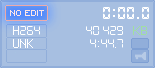
! If the LED panel displays "NO EDIT" indication instead (as shown on the picture above), it means that Machete does not currently support the editing functions for this file format.
How to select a fragment within a video file
To perform any editing operation, you need first to create a selection using the Selection Panel:

Once a selection is created, you can delete (cut) it, copy it to the Clipboard and insert it into another part of the file or save it as a separate video file.
To create a selection:
- Move the slider to the left boundary of the intended selection (alternatively, you can use Jump to time... function or
 button)
 - Press
 Set the beginning of a selection
 - Move the slider to the right boundary of the intended selection and press
 Set the end of a selection

Once the selection boundaries are set, it becomes highlighted.
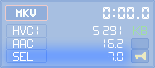
Using  Go to the beginning of the selection and
  Go to the end of the selection buttons, you can instantly move to the beginning or end of a selection to see if the correct boundaries have been set. When there is an active selection in Machete, the LED panel will display the SEL indicator and information about the selection's length (to the nearest 0.1 sec):
To remove an incorrectly set or no longer needed selection, you can use  Clear the selection button.
! Alternatively, you can start setting a new selection - in this case, the previous selection will be automatically converted into a new one.
Note: When you set a selection boundary in a video file, Machete automatically adjusts the position of the boundary to the beginning of the video frame which contains the initial boundary of the selection. Because of this, when you set the current position to the beginning of the selection, the frame displayed is included in the selection. However, when you set the current position to the end of the selection, the frame displayed is the one immediately following the last frame of the selection.
What is Key frame editing?
To edit video with Machete, you need to familiarize yourself with the concept of key frames. When video data is compressed, an encoding program (also called codec) such as DivX, H.265 or WMV inserts a special "strong" frame called a key frame every few seconds. To perform regular editing operations (Cut, Copy, Paste, Delete and Insert a file), you need to set one or both boundaries of your selection (or a current position) in Machete to a key frame (or to the beginning/end of the file). This is called key frame editing.
Depending on the codec used for the creation of a video file, the specific settings of this codec, and the content of a file itself, the accuracy of key frame editing usually varies from 1 to 10 seconds. However, since a key frame is normally located in points where the video scene changes (i.e. in points where a significant change in frame content takes place), this accuracy is usually sufficient.
Below are the precise rules for key frame editing in Machete:
- Cut: both selection boundaries should be set to key frames (or to the beginning/end of the file)
- Copy: at least the beginning of a selection should be set to a key frame (the same applies to the function Save the selection as...)
- Paste, Insert a File...: you need to set an insert point (current position) to a key frame (or to the end of the file)
- Delete: at least the end of a selection should be set to a key frame (or to the end of the file).
Any selection should match the rules for key frame editing in Machete.
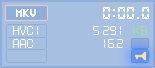
To easily locate key frames in your video file, use Previous key frame  and Next key frame
  buttons. When a slider is positioned on a key frame, the Key frame indicator on the LED panel will become active. Once a key frame adjacent to the beginning or the end of your desired selection area is located, press either Set the beginning of a selection or Set the end of a selection buttons to set the left and right boundaries of your selection precisely on a key frame.
Editing
Once you have selected a fragment of a file, you can apply various functions to it,according to your needs. To delete the fragment, select Edit-> Delete or just press the DEL button. If you want to copy or cut out your selection and move it to a different place in the file, press the Copy  or Cut
  buttons, then move the slider to the point where you want to insert your fragment (this should be a key frame or beginning/end of the file) and press Paste
  . To save your selection as a separate file, press the Save the selection as...
  button.
Insert a file at the current position  button allows you to insert (add) another file to the currently opened file. This operation can be performed only if the two files have exactly the same format. To insert a file, move the slider to the point where you want to insert it (this should be a key frame or beginning/end of the file), press the Insert File button, select a file from the list and press Open.
During editing, you can use the Undo  and Redo
  buttons to cancel or repeat some of your actions.
After you have finished editing your file, you can view the result using the Play  button. The resulting file can be saved using either the Save
  or Save As... functions.
Notes:
If you attempt to perform an editing operation that does not meet the criteria of key frame editing, Machete will display a message with the suggestion that you should adjust the current position of one or both selection boundaries to a key frame (or to the end of the file).
When editing audio files, you can set selection boundaries to any position within a file. You do not have to follow the rules for the key frame editing of video files.